Overview
I built this voice assistant as a hands-on exploration of OpenAI tool calling and browser speech APIs. The goal was to create something that feels like a real assistant: you speak, it understands, it takes action, and it responds naturally.
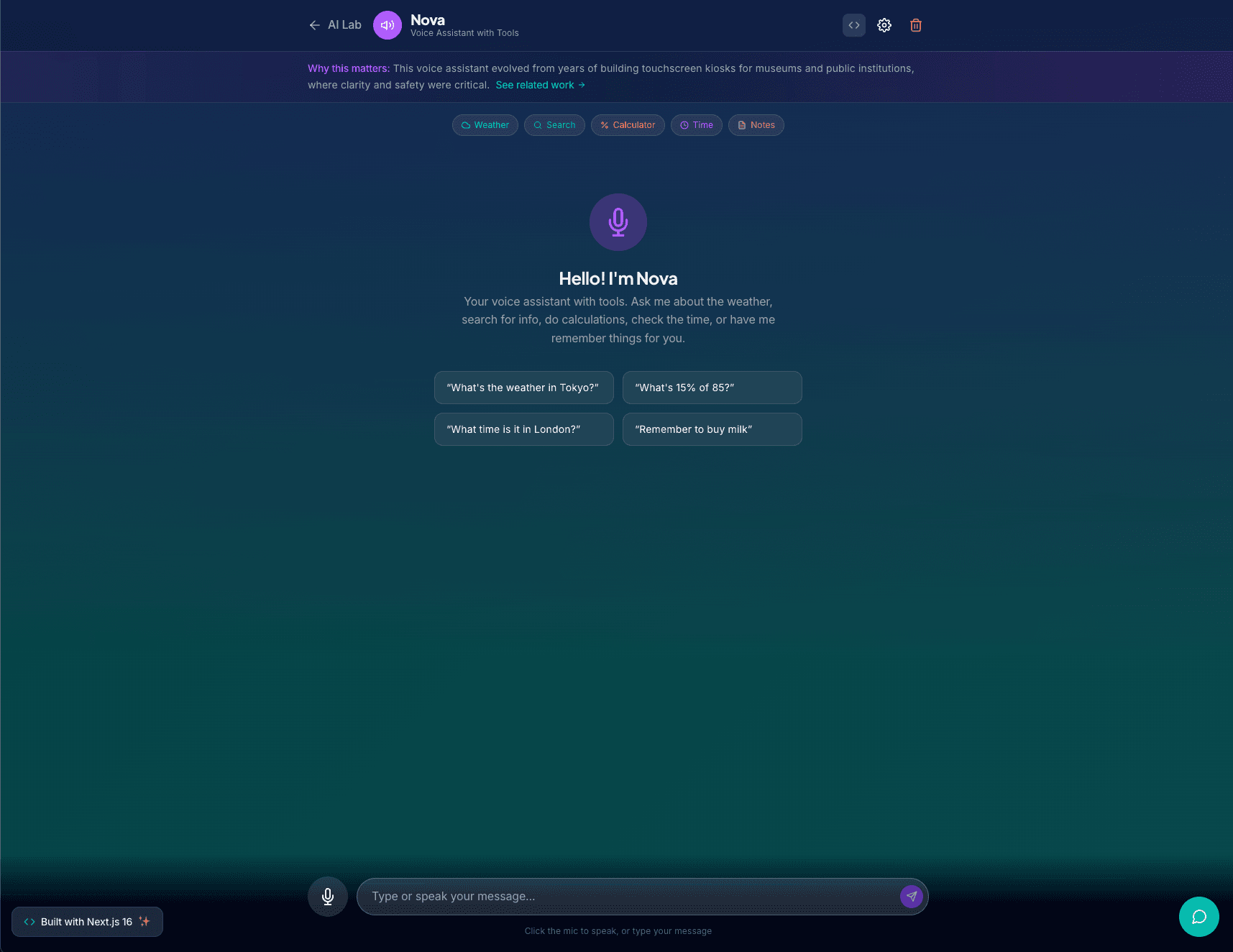
The assistant supports five built-in tools: web search, weather lookup, math calculations, timezone-aware time queries, and a simple note-taking system. When you ask a question like "What is the weather in Austin?" or "Remember to call mom tomorrow", the model decides which tool to invoke, executes it, and weaves the result into a conversational response.
How It Works
Speech Recognition
The frontend uses the Web Speech API (SpeechRecognition) to capture voice input directly in the browser. As you speak, interim transcripts appear in real time. Once the browser detects a pause, it finalizes the transcript and sends it to the backend.
Tool Calling
The backend defines each tool as a JSON schema that describes its name, purpose, and parameters. When a user message arrives, I send it to GPT-4o-mini with the tool definitions attached. If the model decides a tool is needed, it returns a structured tool call instead of a plain response. I execute that tool, feed the result back into the conversation, and let the model generate the final answer.
The tools I implemented:
- get_weather: Fetches current conditions for any city using a weather API
- web_search: Runs a web search and returns summarized results
- calculate: Evaluates math expressions safely
- get_time: Returns the current date and time in any timezone
- remember_note: Saves a note to session memory with an optional category
Text-to-Speech
Once the assistant generates a response, it can optionally speak it aloud. I send the response text to OpenAI TTS endpoint and stream the audio back to the browser. Users can choose from six voice options (alloy, echo, fable, onyx, nova, shimmer) in the settings panel.
Streaming Responses
Like my RAG project, responses stream token-by-token into the chat. The UI creates a placeholder message before the stream begins so there is no layout jump. Tool execution happens mid-stream, with the model pausing to wait for tool results before continuing.
UX Details
- Real-time transcript preview while speaking
- Visual indicators for listening, processing, and speaking states
- Settings panel for voice selection and auto-speak toggle
- Conversation history persists in session
- Dev mode panel shows tool calls and debug info
- Clear error messages for mic permission issues or API failures
What I Learned
This project taught me how to orchestrate multi-step AI workflows where the model acts as a decision-maker. Tool calling is powerful but requires careful schema design so the model knows when and how to use each capability. The speech APIs were surprisingly smooth to integrate, though browser support varies. The hardest part was managing the async flow between speech input, API calls, tool execution, and audio playback without creating race conditions or janky UX.
This is the kind of agent architecture I would use for a production voice assistant or chatbot that needs to do more than just answer questions.